How to Add Alt Text to Images Automatically
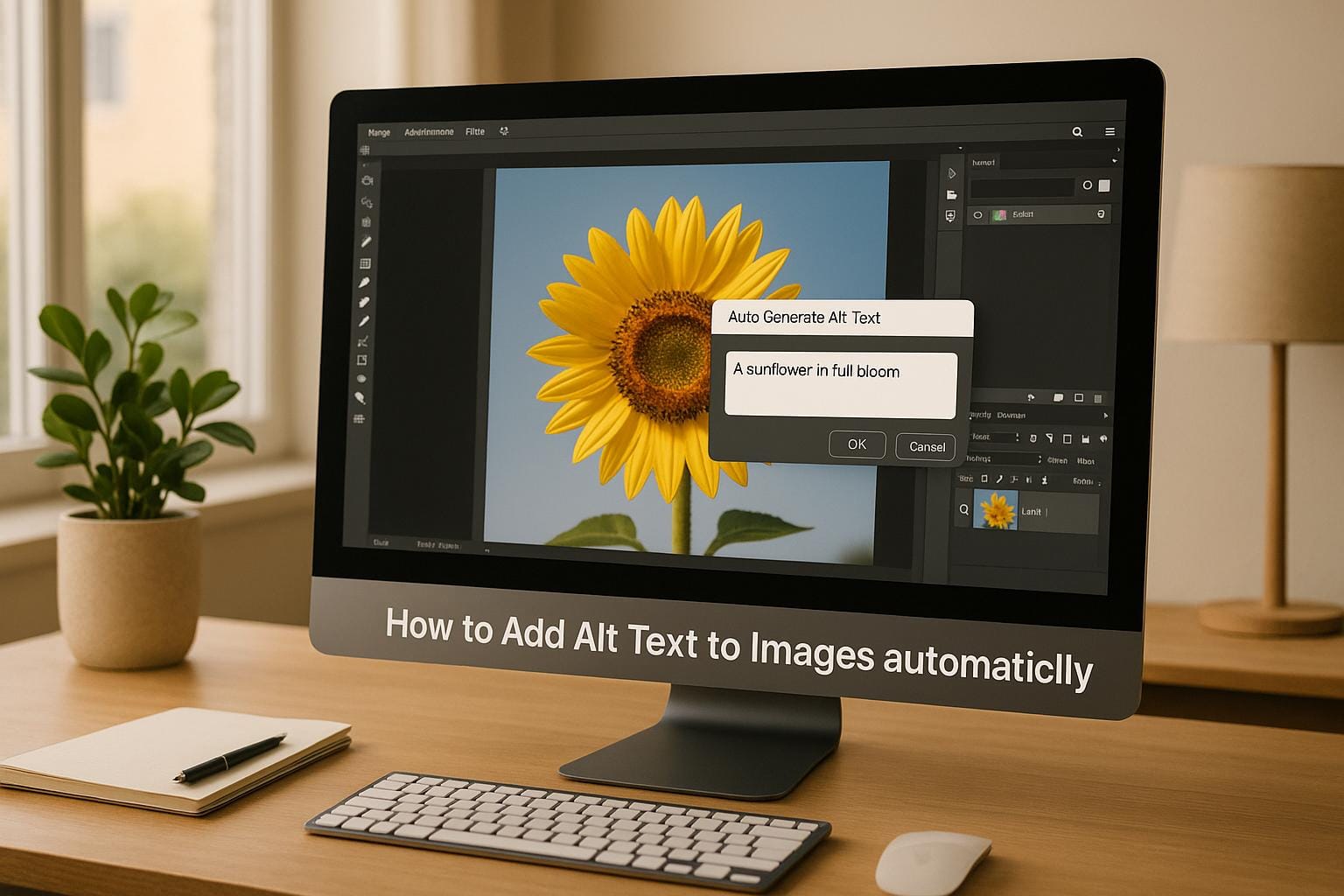
Alt text describes images so visually impaired users can understand their content, and it improves SEO. Writing alt text manually is time-consuming, inconsistent, and often incomplete. Automated tools use AI to analyze images and generate descriptions instantly, solving these issues. AI ensures every image has alt text, saves time, and meets accessibility standards. Tools like Simple File Upload integrate easily into websites, automating alt text generation during uploads. This approach is ideal for large image libraries, though human review can enhance quality for complex visuals.
Key Benefits of Automated Alt Text:
- Saves time by generating descriptions instantly.
- Ensures consistent quality across images.
- Improves SEO and accessibility compliance.
- Handles bulk image processing efficiently.
For developers, tools like Simple File Upload offer easy integration with frameworks (React, Vue, etc.) and provide features like real-time alt text generation, global CDN delivery, and support for multiple image formats. While automation is fast and scalable, manual input may still be needed for nuanced descriptions or brand-specific language. Combining both methods can achieve the best results.
How AI-Powered Alt Text Generation Works
How AI Analyzes Image Content
AI uses a mix of computer vision and natural language processing (NLP) to turn images into clear, descriptive text. The process kicks off by analyzing the visual elements in the image, identifying key objects, and understanding their context. But it doesn’t stop at just naming objects - it also interprets relationships, emotions, and scenarios, much like how humans perceive images. For instance, instead of simply listing "child", "dog", and "grass", the AI might describe the scene as "a young child playing fetch with a golden retriever in a sunny backyard", capturing not just the items but the interaction.
"AI Agents transform the alt text creation process through pattern recognition and natural language understanding. These digital teammates analyze visual elements, identify key objects, interpret context, and generate detailed, accurate descriptions that actually serve visually impaired users."
– Relevance AI
Image captioning models are specifically built for tasks like this. Tools such as Azure AI's Image Analysis create one-sentence summaries of an image's content. Microsoft has incorporated this technology into platforms like PowerPoint, Word, and the Edge browser, where alt text is automatically generated for images. As these systems process more images over time, their accuracy and quality continue to improve.
Main Benefits for Web Developers
AI’s ability to analyze and describe images provides several practical advantages for web developers. One of the biggest perks is scalability - AI can generate alt text for large volumes of images instantly, which is especially useful for sites with heavy visual content. This automated process ensures consistency, avoiding the inconsistencies that can arise when multiple team members manually write alt text.
From an SEO standpoint, automated alt text helps search engines better understand image content, improving site rankings and visibility. Additionally, multilingual support allows descriptions to be created in different languages, broadening accessibility for global audiences without extra effort. Advanced AI can even tackle complex visuals like charts, graphs, and technical diagrams, which are often challenging for human writers to describe effectively. By automating these tasks, development teams can focus on more strategic work while ensuring accessibility compliance is upheld.
Where to Add Automated Alt Text
To make the most of these benefits, automated alt text can be integrated into various parts of your workflow. For example, you can set it up to automatically generate alt text during file uploads, within CMS workflows, or through API triggers. This ensures that every image - whether new or existing - is accessible and meets accessibility standards such as WCAG guidelines. By embedding this functionality into your processes, you can make accessibility an effortless, built-in feature of your content.
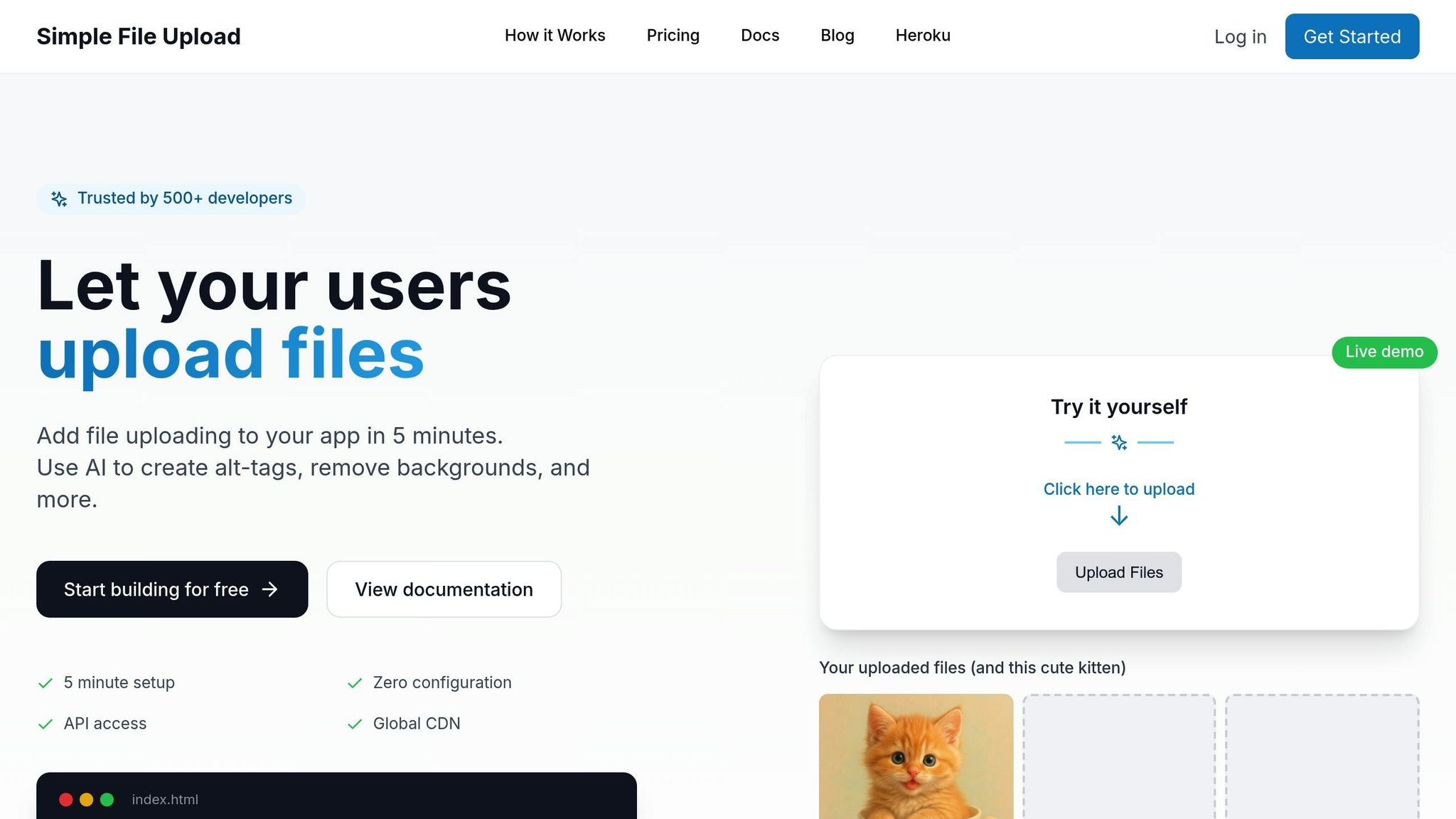
Setting Up Automated Alt Text with Simple File Upload
Configuring Simple File Upload for Alt Text Automation
Automating alt text generation is straightforward with Simple File Upload. This AI-powered feature integrates seamlessly into your upload workflow, ensuring accessibility is built into your content management process.
To get started, add the alt-text attribute to your Simple File Upload web component. This activates the AI, which analyzes uploaded images and generates descriptive text. Don’t forget to include your public key for the service to function correctly.
<simple-file-upload public-key="YourPublicKey" alt-text></simple-file-upload>
Once an image is uploaded, the AI instantly identifies objects and scenes, creating contextual descriptions in real time. These descriptions are accessible through specific events that your application can listen for, allowing you to apply the generated alt text to images dynamically - whether you’re updating DOM elements or saving the text for future use.
This event-driven approach makes the integration versatile and adaptable across different frameworks.
Code Examples for Popular Frameworks
Vanilla JavaScript Implementation
For plain JavaScript applications, you can use event listeners to handle the generated alt text. The altTextGenerated event provides all the details needed to update your images with accessibility-friendly descriptions.
const uploader = document.querySelector('simple-file-upload');
uploader.addEventListener('altTextGenerated', (event) => {
  const { fileId, altText, cdnUrl } = event.detail;
  // Update the image element with the generated alt text
  const img = document.querySelector(`img[data-file-id="${fileId}"]`);
  if (img) {
    img.alt = altText;
  }
});
This method is ideal for applications where you need to update existing images on the page. The fileId acts as a unique key to match the alt text with the correct image.
React Integration
React developers can use the simple-file-upload-react package, which simplifies the process with a component-based approach. Start by installing the package:
npm install simple-file-upload-react
Then, implement the component to handle alt text generation:
import { SimpleFileUpload } from 'simple-file-upload-react';
import { useState } from 'react';

function ImageUploader() {
  const [uploadedFiles, setUploadedFiles] = useState([]);

  const handleFileChange = (event) => {
    if (event.allFiles) {
      const files = event.allFiles.map(file => ({
        id: file.id,
        url: file.cdnUrl,
        altText: 'Processing image...' // Temporary placeholder text
      }));
      setUploadedFiles(files);
    }
  };

  const handleAltTextGenerated = (event) => {
    setUploadedFiles(prev => prev.map(img =>
      img.id === event.fileId
        ? { ...img, altText: event.altText }
        : img
    ));
  };

  return (
    <SimpleFileUpload
      publicKey="YourPublicKey"
      altText={true}
      onChange={handleFileChange}
      onAltTextGenerated={handleAltTextGenerated}
    />
  );
}
This React example manages a state for uploaded files and updates the alt text dynamically once the AI completes its analysis. The placeholder text ensures accessibility while the image is being processed.
Vue and Other Frameworks
Simple File Upload is compatible with Vue, Angular, Svelte, and other frameworks. While the web component works universally, framework-specific packages offer a more integrated experience when available.
Key Features of Simple File Upload
Simple File Upload offers a range of features that make it a powerful tool for production environments:
- Global CDN delivery ensures images and alt text are accessible worldwide with low latency. Files are optimized and distributed across regions for fast access.
- Support for multiple image formats, including JPEG, PNG, WebP, and more, ensures consistent AI analysis across different file types. Whether users upload photos, screenshots, or graphics, the system generates accurate descriptions.
- Broad framework compatibility, with support for React, Vue, Angular, Svelte, and others, means you can integrate alt text automation into almost any tech stack.
- Automatic image transformations, such as resizing, cropping, and optimization, complement alt text generation to enhance performance and storage efficiency.
- Flexible file size and storage options: The Basic plan allows files up to 5 MB and 25 GB of storage, while Pro and Custom plans accommodate larger files and enterprise needs. Alt text generation is included in all plans.
These features make Simple File Upload a comprehensive solution for managing images with accessibility, performance, and scalability in mind.
Managing and Editing Generated Alt Text
Reviewing and Editing Alt Text
AI-generated alt text can be reviewed and refined using the API and dashboard tools, making it easier to tailor descriptions to your needs. Simple File Upload simplifies this process by offering options for both API responses and dashboard-based adjustments.
When the altTextGenerated event triggers, you can capture the AI-generated description and apply custom review logic before assigning it to an image. This allows you to screen out inappropriate content, refine the tone, or add specific details that the AI might overlook.
Here's an example of how you might handle this in code:
uploader.addEventListener('altTextGenerated', (event) => {
  let { fileId, altText, cdnUrl } = event.detail;

  // Apply review logic
  if (altText.length < 10) {
    altText = `Image: ${altText}. Please review for completeness.`;
  }

  // Adjust terminology to match your brand
  altText = altText.replace('person', 'team member');

  // Assign the alt text to the image
  const img = document.querySelector(`img[data-file-id="${fileId}"]`);
  if (img) {
    img.alt = altText;
  }
});
For high-volume applications, consider implementing a moderation queue. This ensures that all generated alt text goes through a human review process before being published. This hybrid model combines the speed of AI with the oversight of manual quality checks.
The Simple File Upload dashboard also offers tools for bulk review and editing. You can view all uploaded images alongside their generated alt text, making it easy to identify inconsistencies or areas that need improvement across your image library.
These steps help establish a consistent standard for alt text quality across all your content.
Best Practices for Alt Text Quality
Good alt text strikes a balance between accessibility and clarity. Keep descriptions concise - around 125 characters - while focusing on the most important visual elements. For example, instead of writing, "A large brown dog with floppy ears sitting on green grass in a park on a sunny day", simplify it to "Brown retriever sitting on grass in park."
Context is key when crafting alt text. The same image might need different descriptions depending on its use. For instance, a photo of a laptop could be described as "Silver laptop computer" in a product catalog but might become "Team member working remotely" in a blog post. Tailor your descriptions to fit the image's purpose and audience.
Avoid redundant phrases like "image of" or "picture showing", as screen readers already inform users that the content is an image. Similarly, don't repeat information that's already provided in nearby text. For example, if a caption says, "CEO John Smith announces quarterly results", the alt text doesn't need to restate the CEO's name or role.
For complex visuals like charts or infographics, AI-generated alt text often serves as a starting point, but manual edits are essential. Provide a brief description in the alt attribute and include a more detailed explanation in the surrounding text or link to a full description.
Ensure that your alt text aligns with your brand's voice and terminology. If your company uses specific language or tone, create a style guide for your review team to maintain consistency.
Bulk Updates and Adding Alt Text to Existing Images
Improving accessibility doesn't stop with new uploads. You can also update older images by generating alt text for them in bulk. Simple File Upload's API supports batch processing, making it efficient to handle large image libraries.
Here’s an example of how to process existing images:
async function processExistingImages() {
  const imageFiles = await getExistingImages(); // Your method to fetch files

  for (const file of imageFiles) {
    // Generate alt text for files missing descriptions
    if (!file.altText) {
      const response = await generateAltTextForFile(file.id);
      await updateImageAltText(file.id, response.altText);
    }
  }
}
When managing alt text at scale, integrating with your database is essential. Store generated descriptions alongside file metadata to streamline updates, track changes, and enable version control.
Keep performance in mind when processing large libraries. Batch requests in groups of 10-20 files to avoid hitting rate limits, and include retry logic for failed requests. Monitor your API usage to ensure you stay within your plan limits.
An audit trail is invaluable for compliance and quality assurance. Document when alt text was generated, who reviewed it, and what changes were made. This helps identify trends in AI performance and highlights areas for improvement in your review process.
Start with high-priority images, such as hero banners and product photos, before addressing decorative elements. This ensures the most impactful updates are made first, improving accessibility for key visuals while you work through the rest of your library.
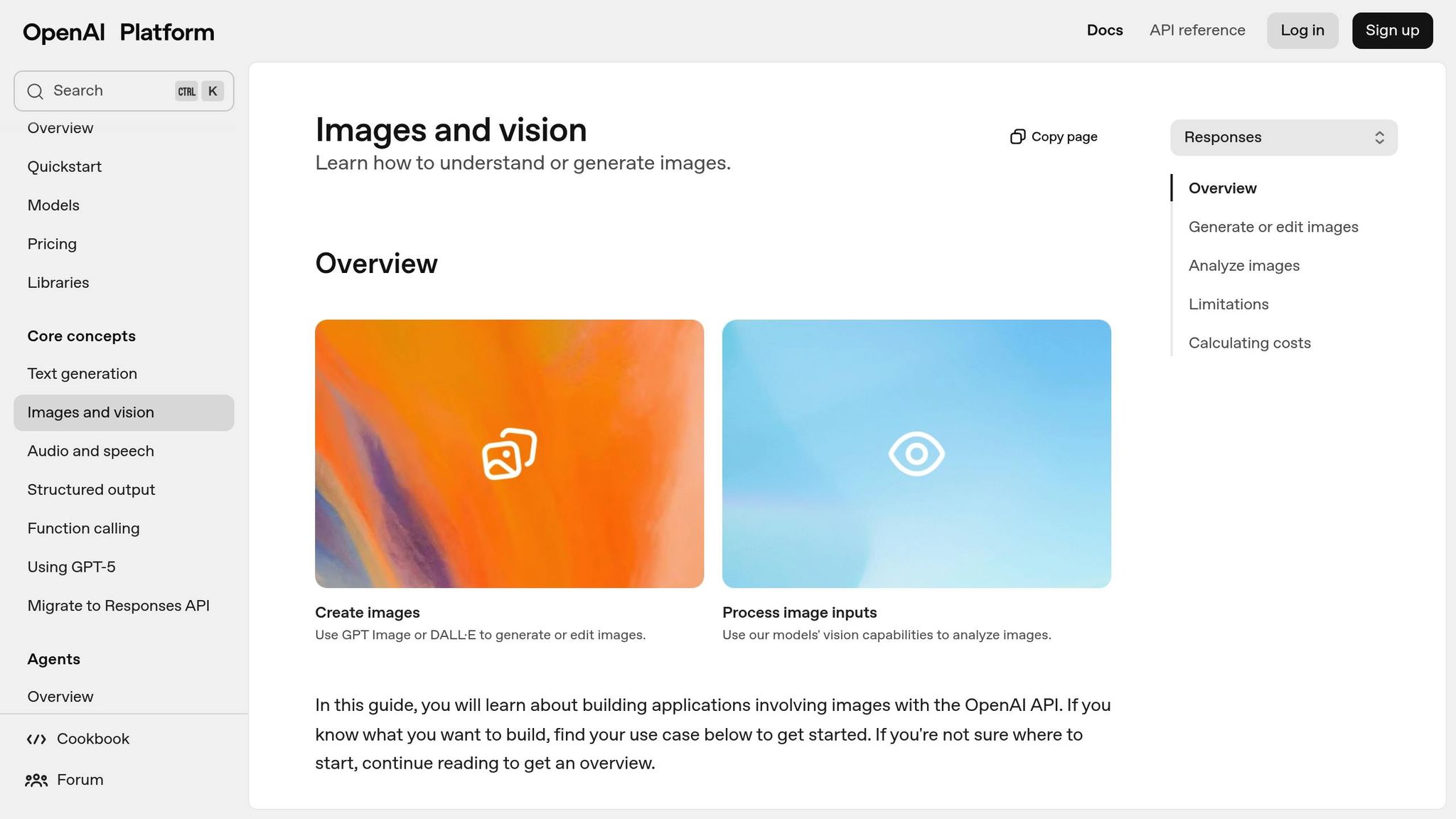
Demo: Using the New OpenAI Vision API To Add Alt Text to an Image Automatically
Manual vs. Automated Alt Text: A Comparison
When deciding between manual and automated alt text, it’s essential to weigh factors like workflow, cost, and accessibility. Each method brings its own strengths, making the choice largely dependent on the scale and complexity of your project. Below, we’ll explore the differences and when each approach is most effective.
Comparison Table of Manual and Automated Methods
| Aspect | Manual Alt Text Creation | Automated Alt Text Generation |
|---|---|---|
| Time Investment | High – requires individual attention for each image | Low – processes large volumes quickly |
| Scalability | Limited – challenging with extensive image libraries | Excellent – handles thousands of files easily |
| Consistency | Variable – depends on writers and guidelines | High – applies uniform standards across images |
| Cost | Higher; e.g., $500–$1,500 for 1,000 images | Lower; under $80/month with tools like Simple File Upload |
| Accuracy | Superior for nuanced, context-rich descriptions | Good for basic descriptions; may lack emotional or contextual depth |
| Setup & Integration | None – ready to use immediately | Requires API setup and configuration |
| Quality Control | Relies on human judgment | Needs brief review for best results |
For instance, creating alt text for a catalog of 1,000 images might cost $500–$1,500 manually, while automated tools like Simple File Upload’s Pro plan can handle it for under $80 per month.
When to Use Automation vs. Manual Methods
Automation shines in scenarios where speed and consistency are key. It’s particularly effective for routine content like e-commerce product images, user-generated content, or large media libraries. Businesses have found that AI-generated alt text can significantly boost organic traffic and improve search visibility, making it a practical choice for high-volume needs.
On the other hand, manual alt text creation excels when a deeper understanding of context is required. For example, visuals like marketing materials, infographics, technical diagrams, or brand-critical images often demand the nuanced touch of a human writer. While an AI might describe a chart as "bar chart with ascending blue bars", a human could craft a more meaningful description: "Q4 revenue increased 23% year-over-year, reaching $2.3 million."
A hybrid approach can offer the best of both worlds. For high-volume projects, automation can generate initial descriptions, which can then be refined by humans for key visuals. This method combines the efficiency of AI with the precision of human insight, ensuring both speed and quality.
Conclusion and Next Steps
Key Takeaways
Using AI to automate alt text generation is a game-changer for improving both image accessibility and SEO. These tools not only save time but also maintain consistent quality across vast image libraries. They help meet accessibility standards, promote inclusivity, and improve how search engines interpret your content. Simple File Upload stands out by offering seamless integration with frameworks and global CDN delivery, handling everything from analyzing images to applying alt text. This makes it particularly useful for e-commerce sites, platforms with user-generated content, and websites rich in media. If you're curious about implementation and support, check out the details below.
Additional Resources and Support
Simple File Upload provides flexible plans for integrating AI-powered alt text tools. The Pro plan costs $80 per month and includes 100 GB of storage with a 50 MB maximum file size. For larger needs, the Custom plan is $250 per month, offering 500 GB of storage along with dedicated support and integration assistance.
FAQs
How does AI create accurate and relevant alt text for complex images?
AI uses a mix of computer vision and natural language processing (NLP) to generate accurate alt text for complex images. Computer vision helps analyze the visual elements, while NLP interprets the context, ensuring the descriptions capture the image's key details and purpose.
For instance, AI can detect objects, scenes, or text within an image and create a meaningful description. This not only improves accessibility for users with visual impairments but also boosts SEO by providing concise, relevant alt text that aligns with the image's message or function.
Can automated tools completely replace manual alt text creation, or is human input still necessary?
While automated tools are great at generating alt text quickly, they fall short when it comes to understanding context, recognizing subtle details, or addressing the specific needs of users. These nuances are crucial for crafting descriptions that are both meaningful and accurate.
That's where human input becomes essential. By reviewing and refining alt text, people can ensure it's not only relevant to the context but also free from mistakes or unintended biases. The best approach combines the speed of automation with the precision of manual oversight, improving both accessibility and the overall user experience.
How can I set up Simple File Upload to automatically add alt text to images on my website or CMS?
To set up automated alt text generation using Simple File Upload, begin by integrating its AI-driven API into your website or content management system (CMS). Adjust your image upload workflow so that image data is sent to the API. The API will then analyze the image and provide a descriptive alt text.
Once you have the alt text, it can be added dynamically to the <img> tag or saved in your media metadata. After integration, test the system by uploading different types of images to ensure the alt text is accurate and implemented correctly. When everything checks out, you’re ready to roll out the feature, boosting both accessibility and SEO with ease.
Related Blog Posts
Ready to simplify uploads?
Join thousands of developers who trust Simple File Upload for seamless integration.