How to Secure File Uploads in Cloud Storage
File upload endpoints can be risky. Without proper security, they might expose your system to malware, data breaches, or even legal trouble. Here's how to secure them:
- Validate Files Thoroughly: Check file types using magic numbers, not just extensions. Scan for malware and enforce size limits.
- Encrypt Data: Use HTTPS (TLS 1.3) for uploads and AES-256 for storage. Manage encryption keys securely.
- Control Access: Apply strict permissions with IAM policies, avoid public access, and use signed URLs for temporary access.
- Monitor Activity: Enable detailed logging and set alerts for suspicious uploads or malware.
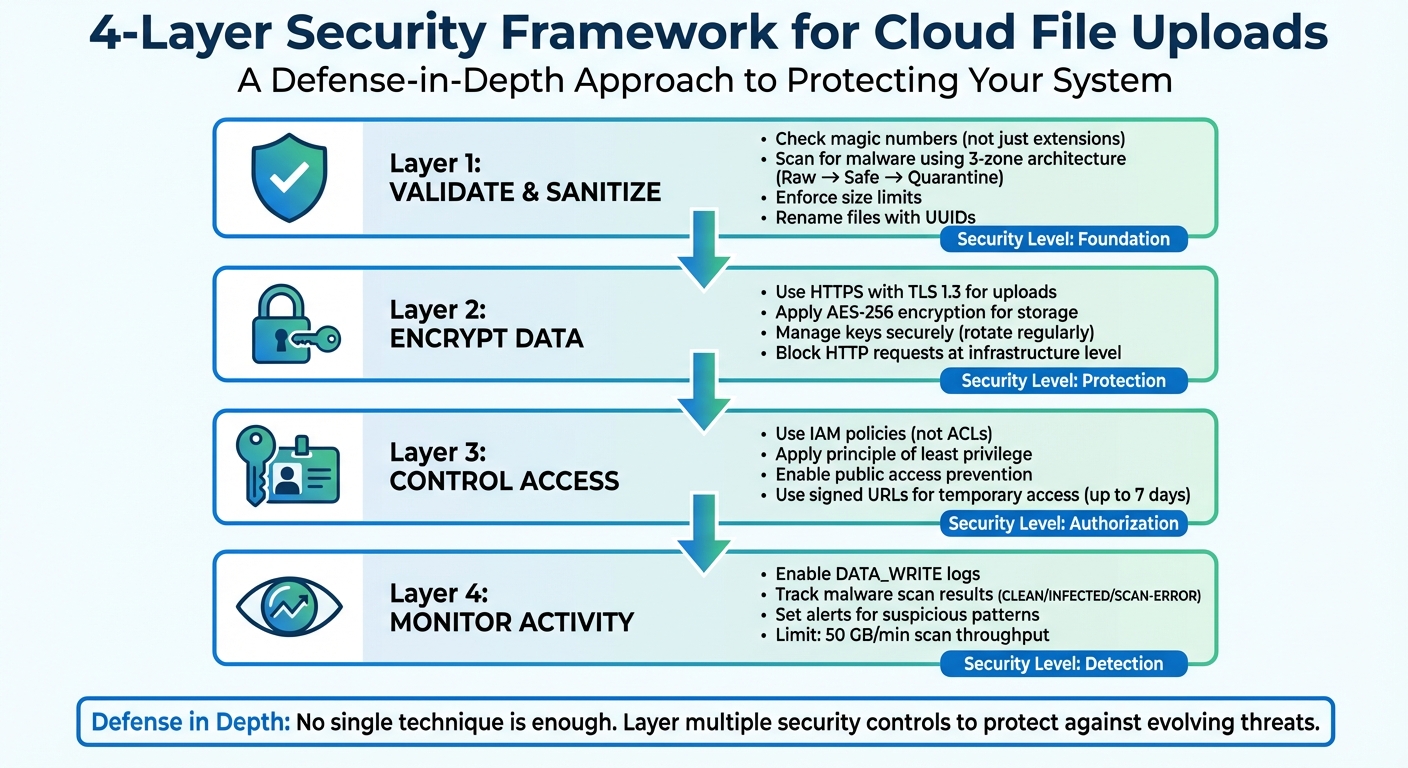
4-Layer Security Framework for Cloud File Uploads
Validate and Sanitize Uploaded Files
Treat every uploaded file as a potential threat until it passes through rigorous validation processes. This involves implementing multiple layers of checks before any file reaches your cloud storage.
File Type Validation
You should never rely on the Content-Type header sent by users. As OWASP points out, "The Content-Type for uploaded files is provided by the user, and as such cannot be trusted, as it is trivial to spoof". Instead, use an allowlist to permit only specific file extensions that your application requires, such as .jpg, .png, or .pdf.
Go beyond file extensions by inspecting magic numbers or file signatures - the actual data at the start of a file reveals its true type. For example, a file named document.pdf could be a disguised executable if you only check its extension. For image files, consider using specialized libraries to rewrite or re-encode the file, which can strip out harmful metadata or embedded scripts. Always perform these validations on the server side, as client-side checks are easily bypassed.
Once the file type is confirmed, proceed to verify the content’s integrity.
Content and Malware Scanning
Adopt a three-zone storage architecture: a "Raw" bucket for initial uploads, a "Safe" bucket for validated files, and a "Quarantine" bucket for those flagged as infected. Use cloud-native triggers, such as AWS S3 Events or Azure Event Grid, to launch asynchronous scans with serverless functions as soon as a file is uploaded. For instance, Microsoft Defender for Storage can scan up to 50 GB per minute per storage account.
Files must not be accessible to users or downstream services until they are verified as safe. Log each file’s status - whether pending, safe, or infected - in a database for tracking. Enhance detection by using multiple antivirus engines.
Enforce Size and Naming Rules
In addition to checking file types and content, enforce strict rules for file size and naming to prevent abuse.
Allowing unrestricted file sizes can lead to inflated storage costs or ZIP bomb attacks, where files expand exponentially during processing. For example, Cloudflare’s scanner only processes the first 50 MB of larger files. Define size limits using signed policy documents, particularly when using HTTP POST presigned URLs, to enforce these restrictions.
Rename uploaded files using random identifiers like UUIDs. This practice prevents directory traversal attacks (e.g., those involving ../ in filenames), accidental file overwrites, and the exposure of sensitive information through user-provided names. Store the mapping between the generated identifier and the original filename in your database rather than in the filesystem. If retaining original filenames is necessary, restrict them to alphanumeric characters, hyphens, and periods, and enforce a reasonable maximum length.
| Validation Method | Security Level | Key Benefit |
|---|---|---|
| Extension Allowlist | Medium | Limits uploads to predefined, safe extensions |
| Magic Number Check | High | Confirms the true file type by inspecting file data |
| Image Rewriting | Very High | Removes malicious content by re-encoding files |
These steps are essential to ensure data security within the shared responsibility of cloud environments.
Encrypt Data for Storage and Transfer
After validating and sanitizing your files, the next critical step is encryption. This ensures your data is protected against interception and tampering - whether it's being transferred or stored. Encryption serves three key purposes: it confirms the identity of the endpoint, prevents any changes to the data during transfer, and makes intercepted files unreadable. Let’s start with securing data during transit.
Encryption for Data in Transit
Every file upload should use HTTPS with Transport Layer Security (TLS) to guard against eavesdropping and man-in-the-middle attacks. Opt for TLS 1.3, which offers the highest level of security currently available. As AWS advises, "It's a security best practice to enforce encryption of data in transit to Amazon S3".
To ensure compliance, enforce HTTPS at the infrastructure level instead of relying solely on developers. For instance, you can use bucket policies with conditions like aws:SecureTransport to automatically block requests sent over plain HTTP. Additionally, configure your storage accounts to require a minimum of TLS 1.2, while aiming to use TLS 1.3 for better performance and security. For web applications serving files through custom domains, implementing HTTP Strict Transport Security (HSTS) headers ensures browsers always use secure connections.
Amazon S3 now supports hybrid post-quantum key exchange (ML-KEM) with TLS 1.3, which provides an additional layer of protection against future quantum computing threats. If you’re using resumable uploads with session URIs, make sure temporary authentication tokens are transmitted only over HTTPS. Once files are securely transferred, they also need strong encryption at rest.
Encryption for Data at Rest
When files are stored in the cloud, they should be encrypted at rest - commonly using AES-256 encryption with Galois/Counter Mode (GCM) to ensure both confidentiality and integrity.
As of January 5, 2023, Amazon S3 automatically encrypts all new object uploads at rest by default, with no additional cost. Similarly, Google Cloud ensures that "Cloud Storage always encrypts your data on the server side, before it is written to disk, at no additional charge".
You have several options for managing encryption keys. Provider-managed keys (like SSE-S3 or Google’s default encryption) handle key management for you, simplifying the process. For stricter compliance standards, such as PCI-DSS or HIPAA, customer-managed keys (e.g., AWS KMS or Google Cloud KMS) offer greater control over key rotation and access monitoring. Alternatively, client-side encryption lets you encrypt files locally before uploading them, ensuring the cloud provider never has access to unencrypted data.
If you manage your own keys, establish a regular rotation schedule to reduce risks from potential key compromises. Tools like S3 Storage Lens or S3 Inventory can help audit the encryption status of your stored objects, ensuring no data is left unprotected. Finally, keep in mind that starting in April 2026, AWS will disable server-side encryption with customer-provided keys (SSE-C) for all new buckets by default to enhance security.
Secure Cloud Storage and API Access
Once your files are encrypted, the next step is managing who can access them. After encryption and validation, strict access controls ensure that only authorized users or systems can interact with your data. Securing access is a critical layer of protection for encrypted files.
Access Control Policies
To simplify management and reduce risks, use IAM-based policies for bucket-level access instead of outdated Access Control Lists (ACLs). This approach not only minimizes the chance of accidental data exposure but also makes auditing much easier. Subhasish Chakraborty, Group Product Manager at Google Cloud, highlights the challenge with ACLs:
"As the number of objects in a bucket increases, so does the overhead required to manage individual ACLs. It becomes difficult to assess how secure all the objects are within a single bucket".
Stick to the principle of least privilege - grant users only the permissions they absolutely need. For instance, assign storage.objectViewer to users who only need to read files rather than giving them broader roles like storage.admin. You can also use automated role recommendations based on a 90-day usage history to clean up unnecessary permissions.
To prevent accidental public access, enable public access prevention at the bucket or organization level. This blocks access from allUsers and allAuthenticatedUsers, ensuring files don’t unintentionally become available to the public. Add an extra layer of security by implementing bucket IP filtering, which restricts access to specific IP ranges or Virtual Private Clouds (VPCs). This ensures that any requests from unauthorized networks are automatically rejected.
For temporary access needs, use signed URLs. These provide time-limited read or write permissions (up to 7 days) for specific objects without requiring the user to have a cloud account.
API Authentication and Authorization
In addition to strict access policies, securing your file upload APIs is essential. Use OAuth 2.0 tokens in the Authorization header for programmatic access to cloud storage APIs. For server-to-server communication, rely on Service Accounts with tightly scoped permissions. For example, assign the storage.objectCreator role for uploads instead of broader administrative roles.
Avoid exposing API keys in URL query parameters. Google Cloud documentation warns:
"API keys hardcoded in the source code or stored in a repository are open to interception or theft by bad actors".
Instead, use the x-goog-api-key HTTP header or client libraries. Apply strict restrictions to API keys, such as limiting them to specific APIs, IP addresses, or web referrers, to reduce the impact of potential leaks.
For resumable uploads, initiate the process server-side and return a session URI as a temporary token. Use Application Default Credentials (ADC) to allow your applications to automatically locate and use credentials across various environments, from local development to production. If you're working in multi-cloud or hybrid environments, opt for Workload Identity Federation instead of long-lived service account keys. This provides secure authentication without needing to manage static credentials.
Regularly rotate API keys and service account credentials to minimize risks. Use cloud tools to audit permissions every 90 days, identifying unused roles and revoking unnecessary access. This ensures your system stays secure and up to date.
Monitor and Log File Upload Activities
Once you've locked down access and added encryption, the next step is logging. Without proper monitoring, malicious activities can slip under the radar. As Google Cloud documentation explains:
"Google Cloud services write audit logs to help you answer the questions, 'Who did what, where, and when?' within your Google Cloud resources."
This creates a solid foundation for tracking uploads and setting up real-time alerts.
Enable Detailed Logging
By default, many cloud providers turn off data access logs to save costs, but this can leave critical actions untracked. To ensure you're covered, enable DATA_WRITE logs to document when objects are created, moved, or updated. These logs should include details like the user or service account, the operation performed (e.g., storage.objects.create), the resource affected, and the timestamp.
To add more context, use headers like x-goog-custom-audit-user to attach custom metadata, such as internal IDs, job identifiers, or the purpose of the upload. Also, log malware scan results with statuses like "CLEAN", "INFECTED", or "SCAN-ERROR." Every upload should have a lifecycle record, with statuses such as pending, safe, or quarantine, ensuring a clear audit trail.
For long-term storage and deeper analysis, route these logs to external tools like BigQuery or Pub/Sub. Keep in mind that while Admin Activity logs are usually free, Data Access logs may come with additional costs based on usage volume.
Once your logging system is in place, the next step is to act on the data by setting up alerts.
Set Up Alerts for Suspicious Activities
Logging is only part of the equation - alerts are essential for catching threats in real time. Configure alerts for high-risk events, such as malware detections (e.g., "Eicar-Signature") or sudden spikes in policy denial errors. Keep an eye on upload patterns to spot unusual activity that could signal a Denial of Service (DoS) attack or even data theft attempts.
For instance, Microsoft Defender for Storage enforces a scan throughput limit of 50 GB per minute per storage account. If you approach this threshold or notice a surge in infected files, act immediately. To manage costs, consider monthly scanning caps (e.g., 10 TB per account). Additionally, if a scanner error occurs, block the file by default until it can be properly scanned.
Finally, limit access to logs by assigning roles like Private Logs Viewer to authorized personnel only. This ensures sensitive metadata stays secure.
Conclusion
Securing cloud file uploads requires a layered approach that addresses multiple vulnerabilities. As OWASP advises:
"Implementing a defense in depth approach is key to make the upload process harder and more locked down... as no one technique is enough to secure the service." - OWASP
Start by letting your users upload files while treating every upload as untrusted. Use strict file type validation, scan for malware, and rename files systematically to prevent injection attacks. Protect sensitive data by encrypting it both during transit (using TLS) and at rest (with server-side encryption). When granting API access, opt for temporary credentials like presigned URLs to minimize exposure and control operations.
Set up logging and alerts to detect unusual activity early and act quickly. As AverageDevs aptly puts it:
"Treating uploads as a UX problem instead of a security boundary is how teams get surprised in postmortems." - AverageDevs
Taking these precautions ensures your cloud file security strategy is prepared for potential threats.
FAQs
How can I protect my cloud storage from malicious file uploads?
To keep your cloud storage safe from harmful file uploads, it's important to use malware scanning and content filtering. Tools like antivirus or malware detection software can check files for threats before they're stored. Automating this process during uploads can help cut down on risks significantly.
You might also want to use security APIs that scan files in real-time. These can block dangerous uploads right away. Pairing these strategies with secure upload practices - like limiting file types and setting size restrictions - provides an added shield for your system.
What are the best encryption practices for securing files in cloud storage?
To keep file uploads in cloud storage secure, encryption plays a critical role in safeguarding sensitive information during both transfer and storage. One of the strongest methods is end-to-end encryption (E2EE). With E2EE, files are encrypted on the client side before being uploaded, meaning only individuals with the correct decryption keys can access the data.
Another widely used approach is server-side encryption, where the cloud provider encrypts the data after it's uploaded and manages the encryption keys. Some providers also allow you to use customer-managed keys, offering greater control over your data's security. Deciding between client-side and server-side encryption depends on your specific security requirements and the level of control you prefer, but both methods offer solid protection for your files.
How can I set up alerts for unusual file upload activity?
To keep an eye on unusual file upload activity, you can set up monitoring and alerting tools within your cloud storage system. Start by turning on logging features that track file uploads. Then, configure alerts to flag unexpected behaviors, like uploads of unusually large files or frequent uploads from unfamiliar sources.
You should also implement automated malware scanning for uploaded files. This helps detect and block potentially harmful content before it becomes an issue. Many cloud storage platforms come with built-in tools to analyze logs and send alerts for suspicious activity, keeping you informed and ready to act fast.
Related Blog Posts
Ready to simplify uploads?
Join thousands of developers who trust Simple File Upload for seamless integration.